For AutoCAD LISP developers

AutoLISP IDE for AutoCAD

Lightweight, fast, and built for direct injection. A convenient editor with readable themes and structured navigation.

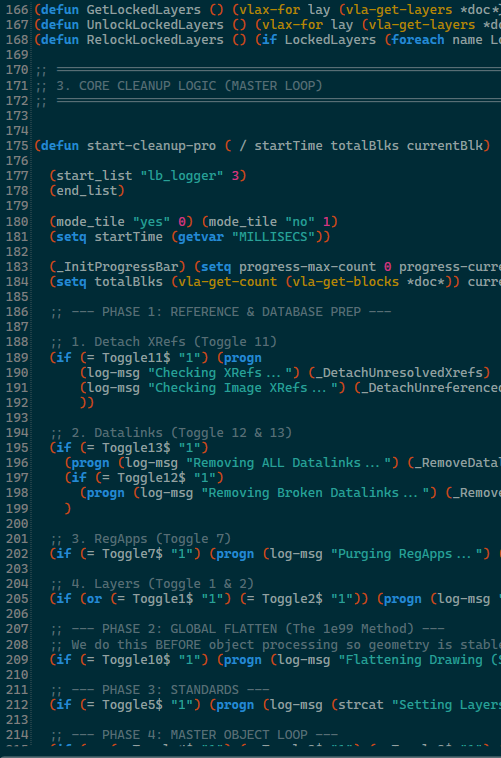
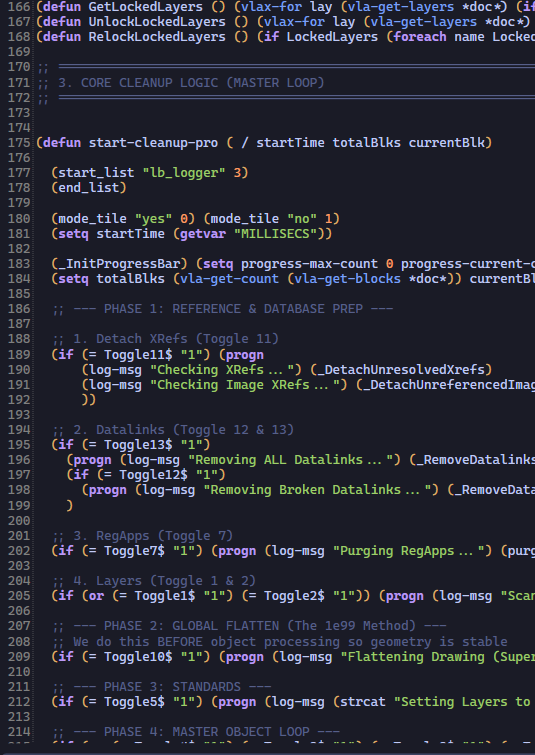
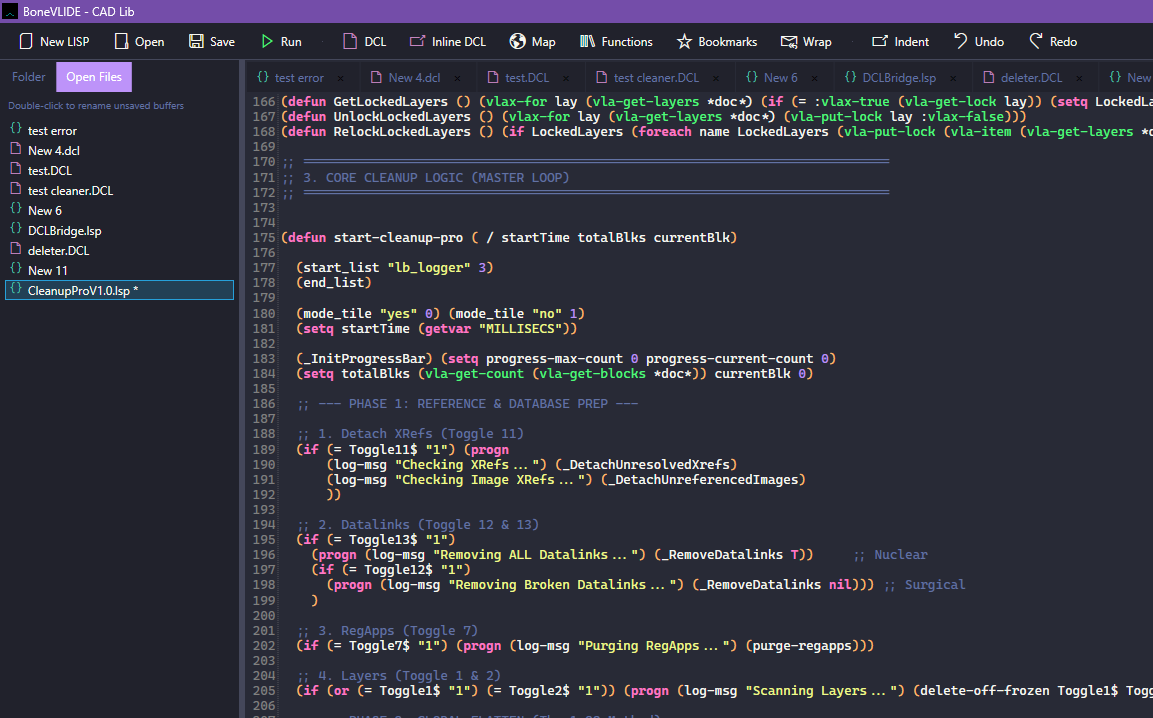
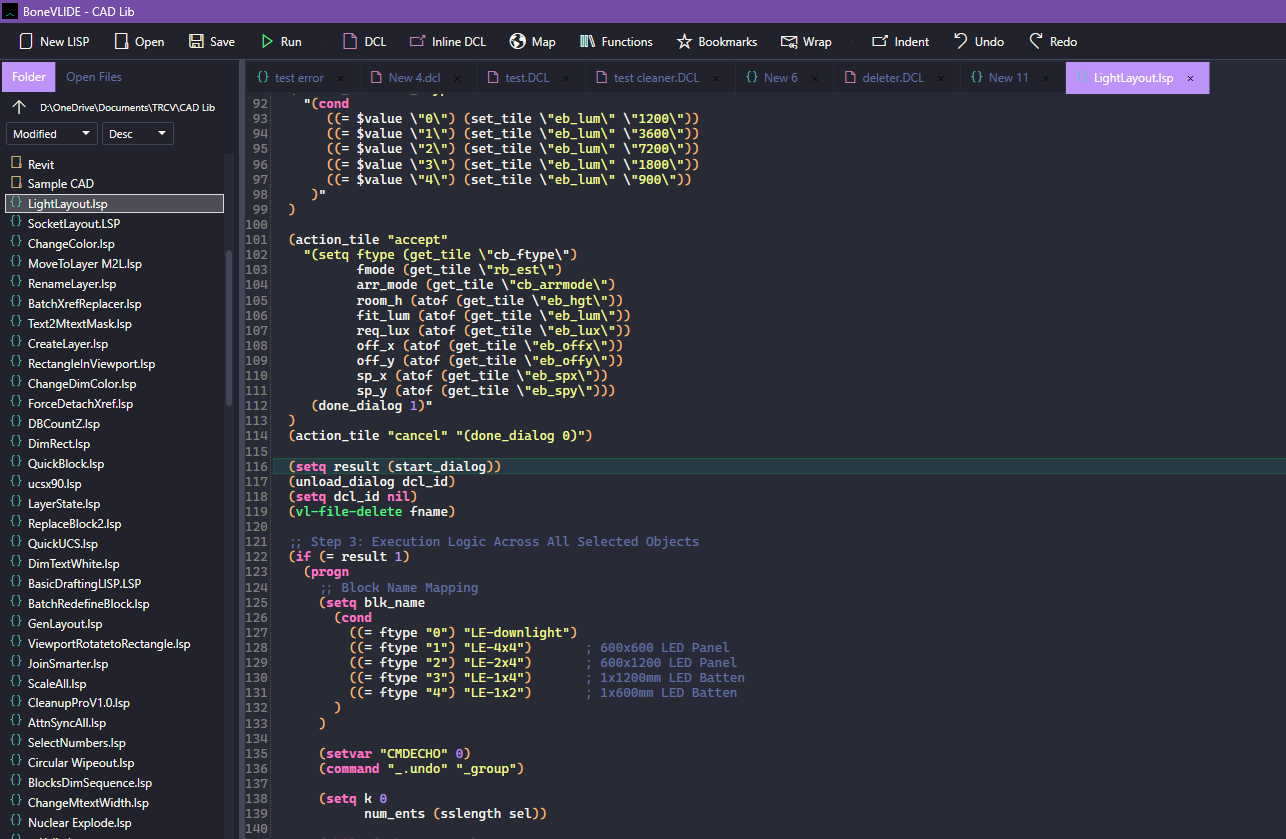
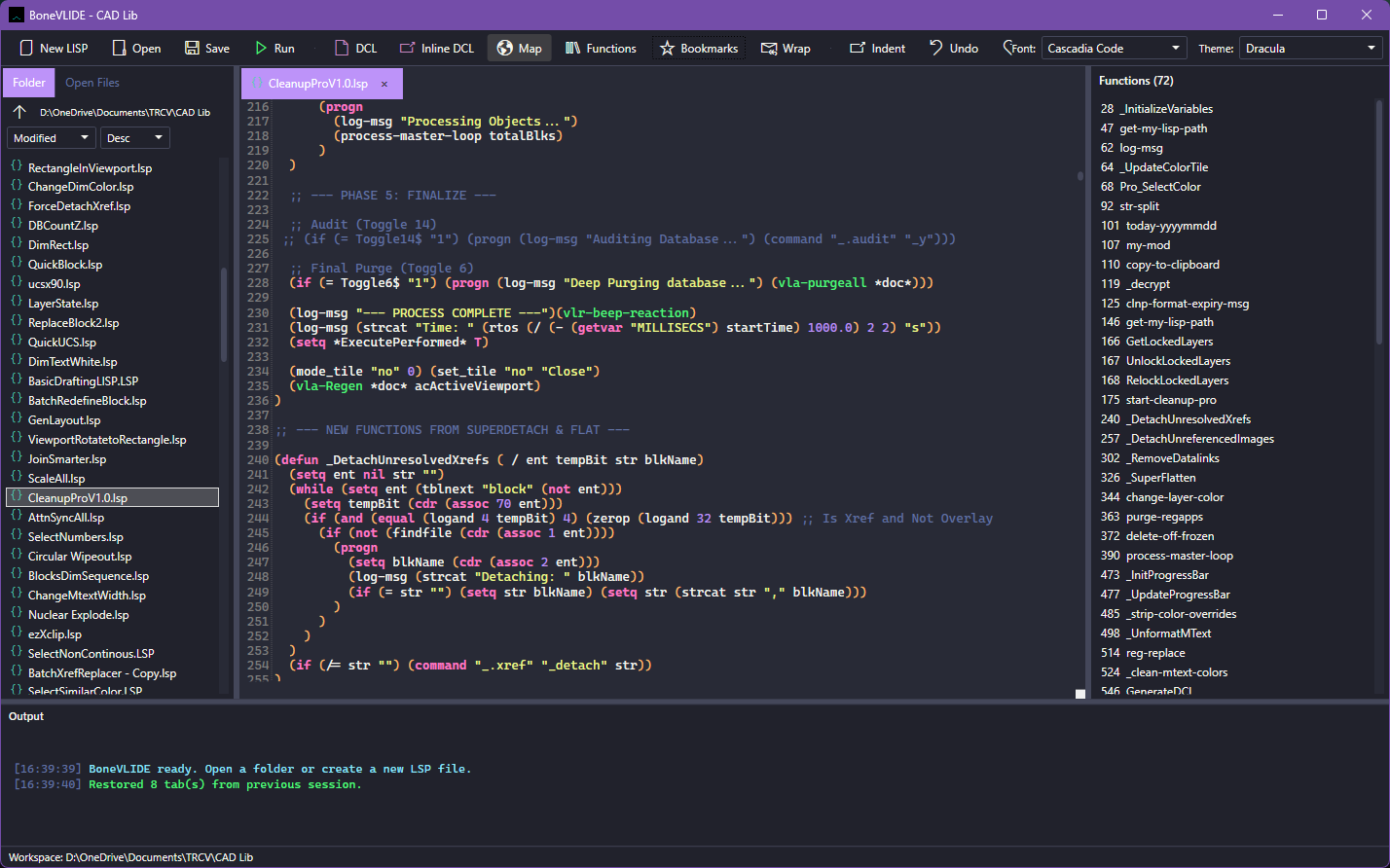
BoneVLIDE editor with explorer, code view, function list, and output panel

Why BoneVLIDE

An IDE for AutoLISP and DCL work.

Focused

Open a project folder, edit .lsp and .dcl files, and stay inside one window.

Connected

Press F5 or Ctrl+E to inject code into the active AutoCAD session through COM.

Persistent

Session restore in the style of Notepad++. Tabs, layout, theme, and unsaved files return after restart. Rename untitled work without losing state.

Observable

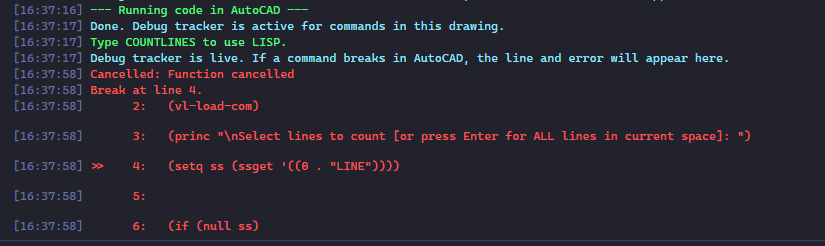
See the active runtime line, capture errors in the output panel, and read a floating card at break lines that states the likely cause.

Editor and navigation

Themes, fonts, and editor tools.

Themes, fonts, and syntax

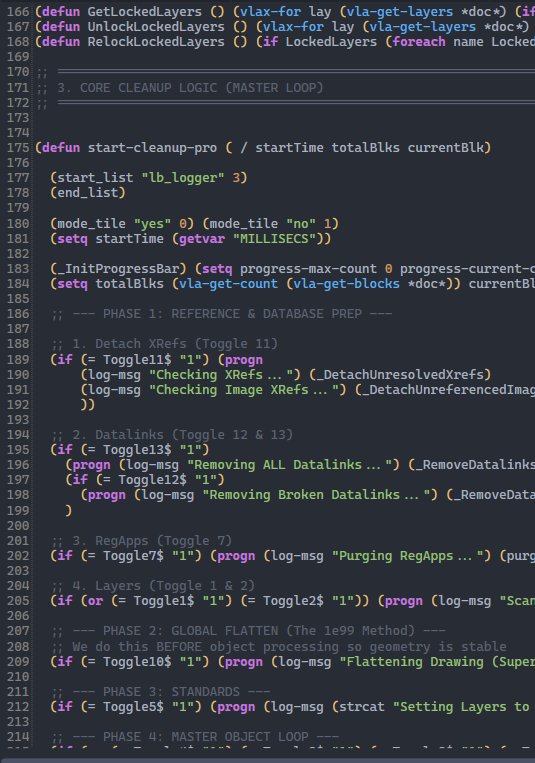
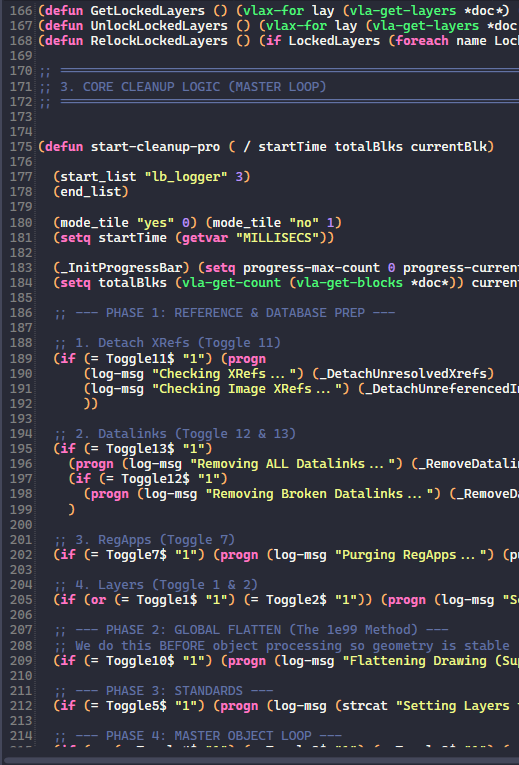
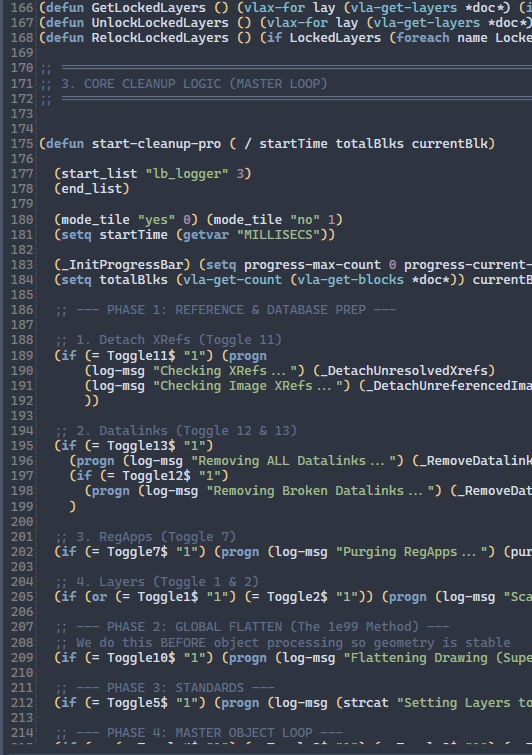
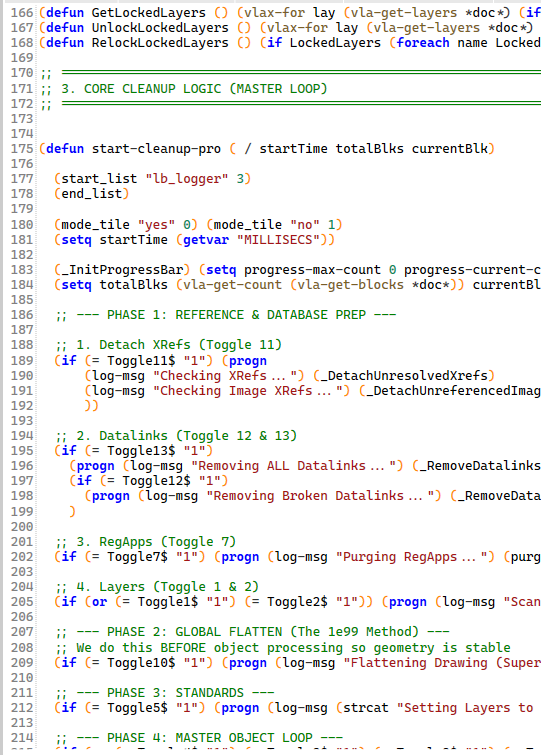
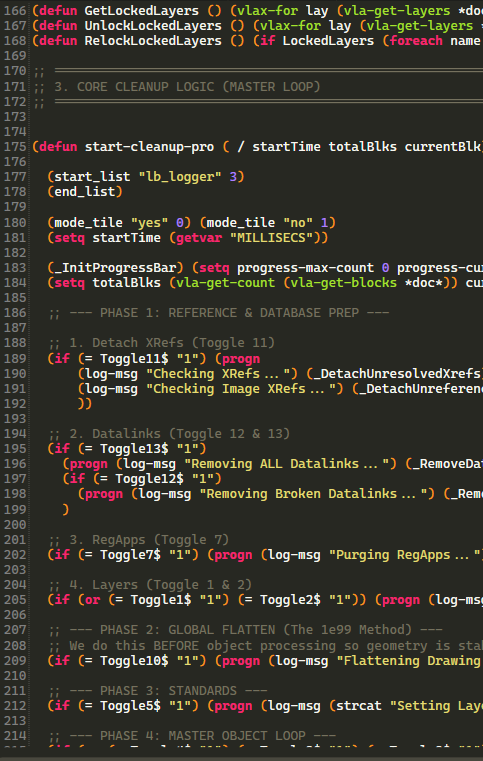
Multiple editor themes with separate color rules for AutoLISP and DCL. Choose from installed monospace fonts, including JetBrains Mono, Fira Code, and IBM Plex Mono when present on your system. Zoom with Ctrl and the mouse wheel.
Session persistence

Reopen tabs, panel sizes, folder sort order, and the last folder path. Unsaved work survives restarts. Untitled files can be renamed from the tab bar.

BoneVLIDE restoring tabs, layout, and unsaved files after restart

Lightweight explorer

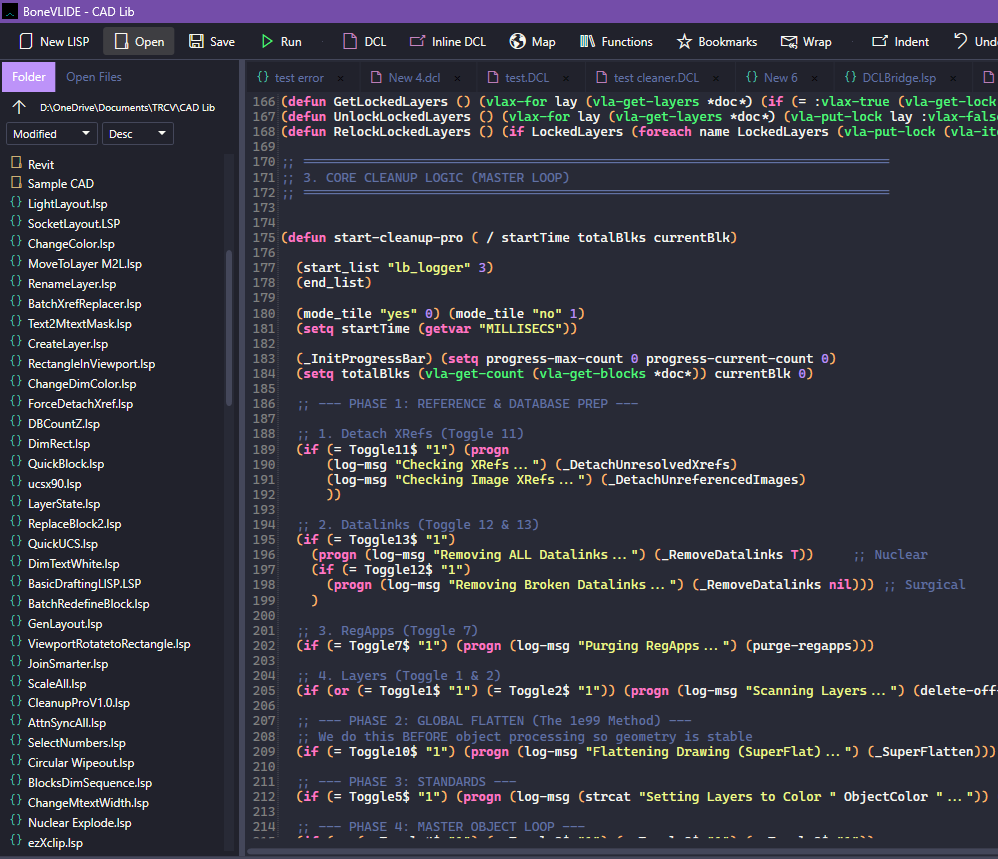
Browse project folders with sort by name or modified date. Open files list keeps recently used tabs within reach.

Project folder explorer with sort options and open files list

Document map

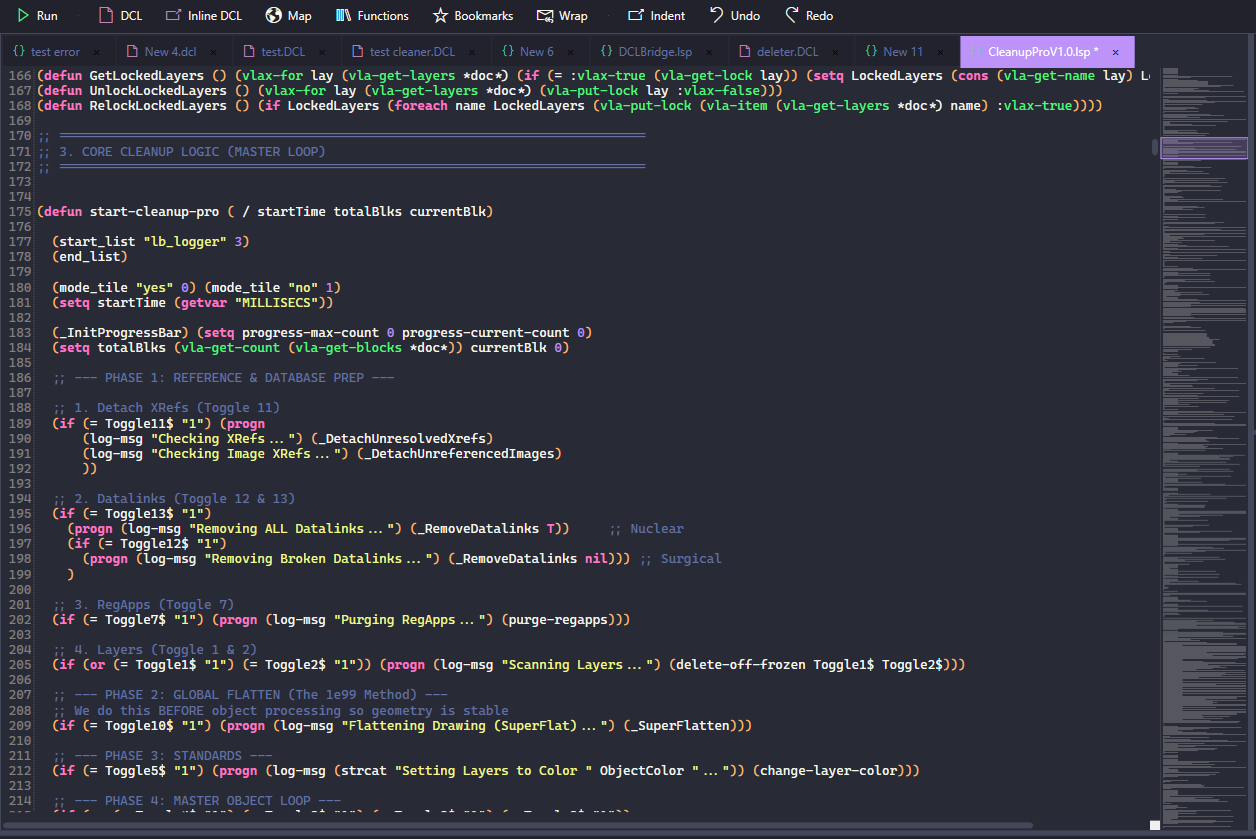
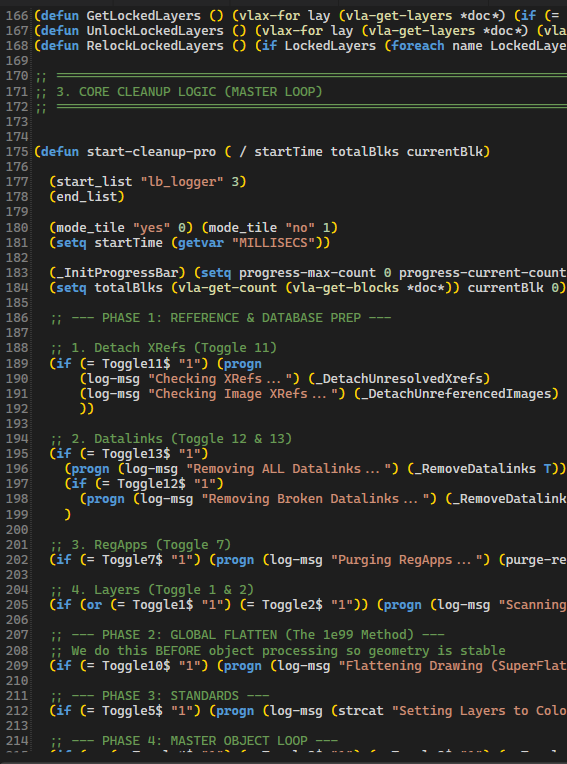
A minimap along the editor edge shows the full file at a glance. Click or scroll to jump through long LISP sources quickly.

Document map minimap along the editor edge

Bracket selection

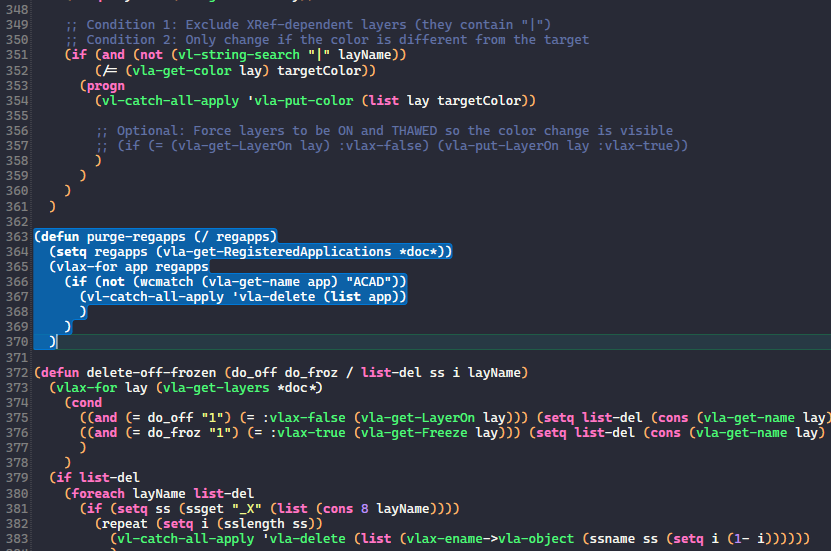
Double-click an opening or closing (, ), {, or } to select the entire form.

Double-click bracket selection highlighting an entire LISP form

Function list

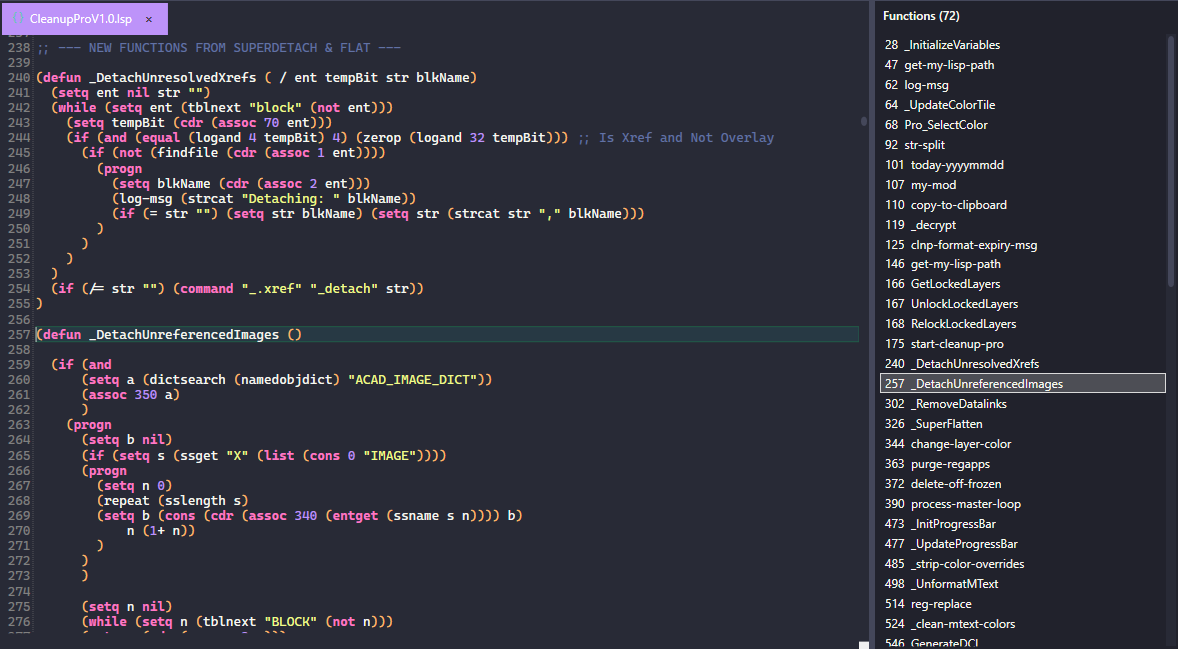
Toggle the function panel to list every defun and defun-q in file order. Select a name to jump to its definition.

Function list panel showing defun definitions in file order

Bookmark list

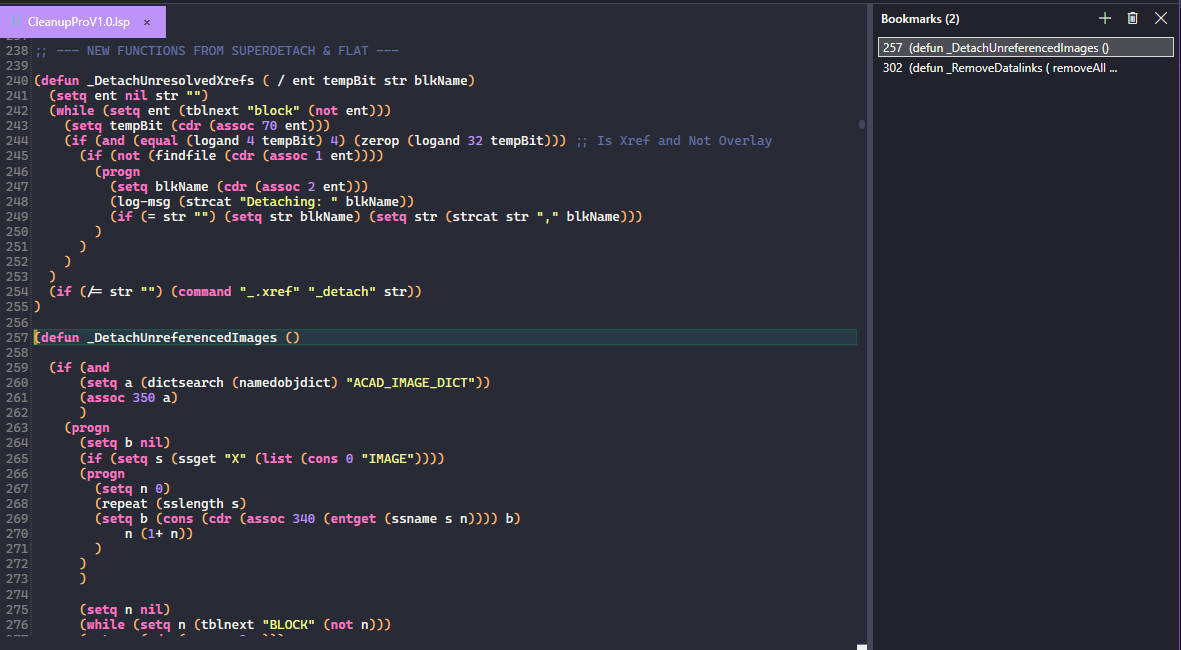
Add bookmarks from the editor context menu.

Bookmark list with saved editor positions

DCL live editing

Work on dialog layout and the LISP that drives it.

Side panel preview

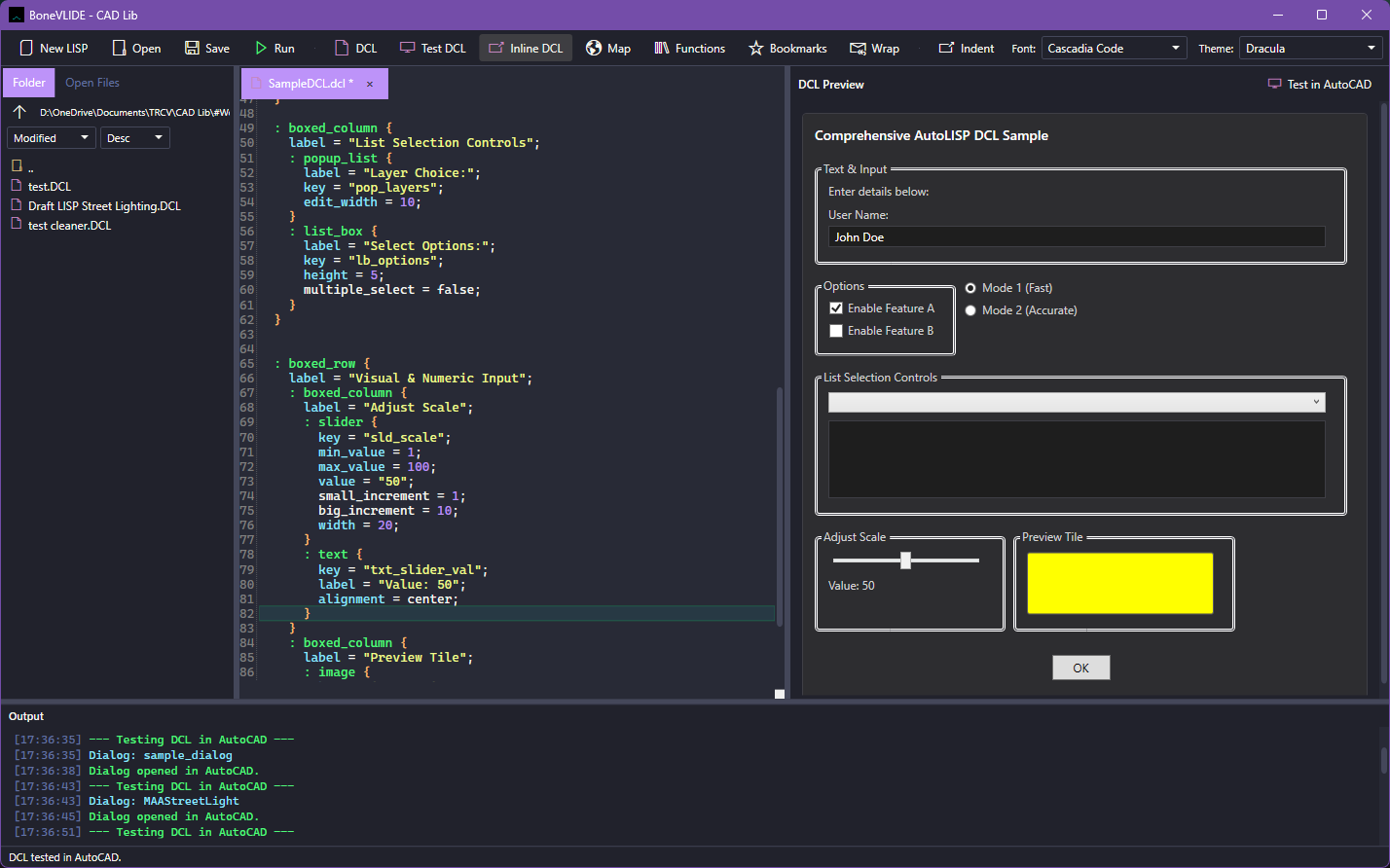
Edit a .dcl file and see a live preview in the right panel.

Live DCL preview in the right-side panel

Inline DCL window

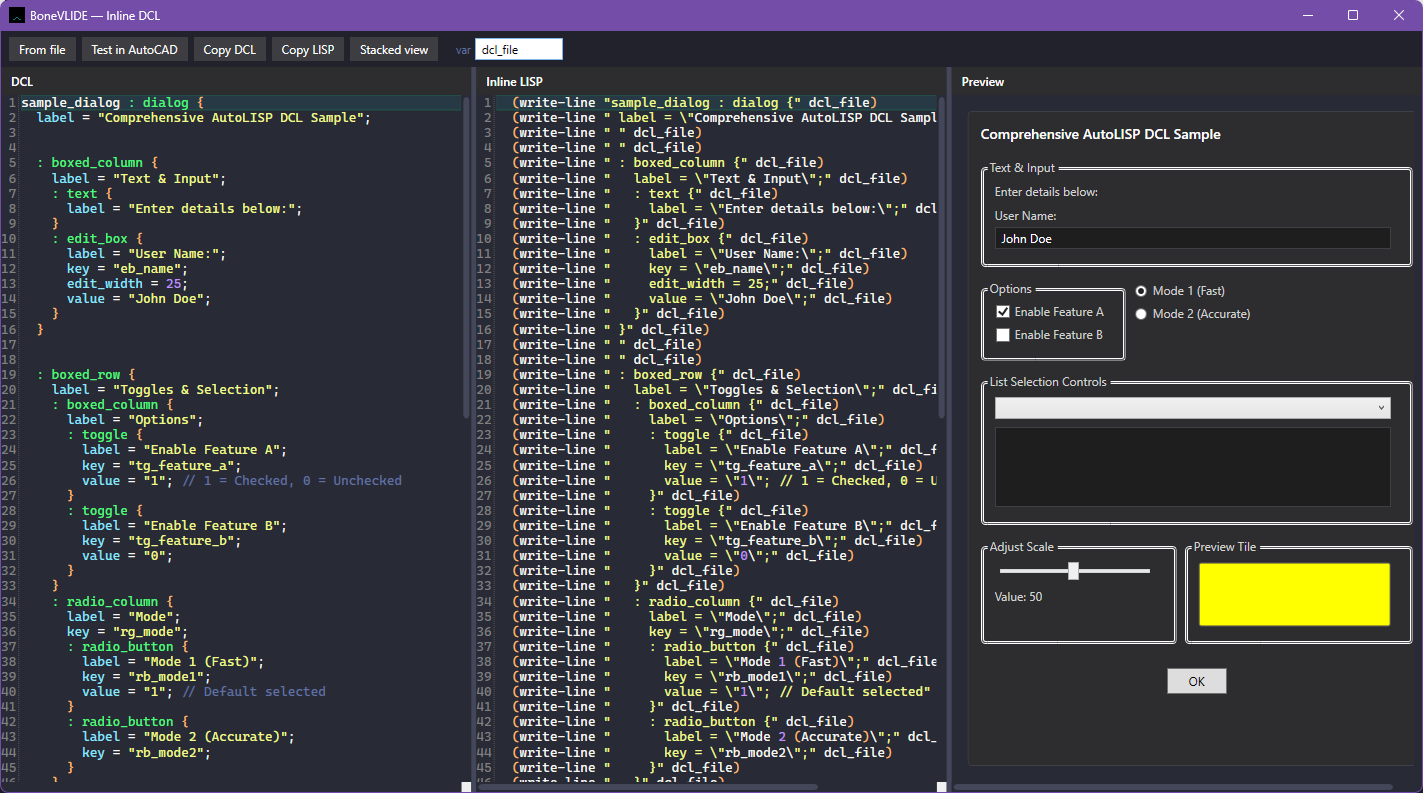
Open the inline DCL tool to edit DCL source, inline LISP, and preview together in one non-modal window. Move between DCL and write-line style LISP in both directions.

Inline DCL editor with source, LISP, and preview in one window

Debugging

Runtime feedback tied to the line you are editing.

Active line

While code runs in AutoCAD, the editor highlights the line currently executing so you can follow control flow through your source.

Error capture

Injected error handling writes runtime failures to the output panel. Read the message without digging through the AutoCAD command line.

Runtime error written to the BoneVLIDE output panel

Break lines and error cards

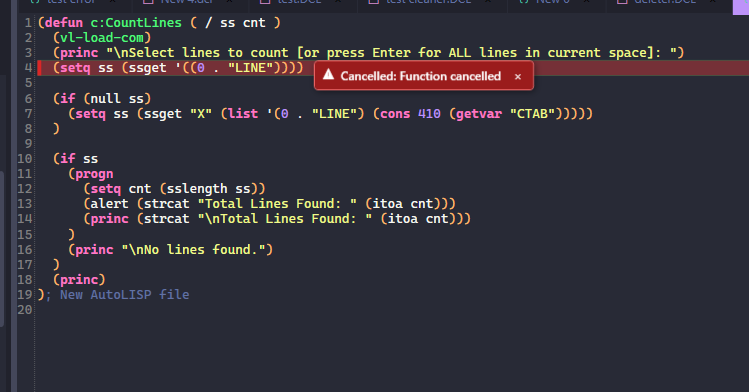
Place (break) to stop at a line. When execution breaks or errors, a floating card near the line summarizes the general cause.

Floating error card near a break line summarizing the likely cause

How it works

Open your project

Point BoneVLIDE at a folder of LISP and DCL sources. The explorer and open-files list keep navigation simple.

Edit with context

Use syntax highlighting, the document map, function list, and DCL preview while you write. Session restore keeps your layout.

Run in AutoCAD

Press F5 to inject into the active drawing. Watch the output panel and active line marker as code executes.

Start with BoneVLIDE

Windows 10 and 11. Tested on AutoCAD 2018 and 2024.

Download for Windows